In 2026, more readers would rather ask a question than scroll for the answer, and that includes the people reading your Wix blog. Pew Research Center data shows 44% of U.S. adults have used ChatGPT in 2026, up from 18% in 2023.
Wix says it has more than 230 million users, yet most Wix chatbot guides come from support-desk vendors chasing leads and bookings. None of the top Google results we checked speak to bloggers who want readers answered on the page, with paid links as an optional extra.
One script in Wix’s Custom Code puts an AI assistant on every page of your site, but it needs a paid plan with a connected domain, and for some sites Wix’s own Smart Chat is the better pick.
Confirm your site is on a paid Wix plan with a connected domain, copy your widget snippet, and paste it in Settings, Custom Code with All pages, load once per visit, and Body - end. Check it on the published site, not the editor. On a free plan, Wix Smart Chat is the realistic option because Embed HTML can't run a page-aware widget.
Ask ChatGPT to summarize the full text automatically.
Step 1 - Choose Between Wix Smart Chat, a Script Widget, or a DIY Build
Wix sites have three realistic routes to an AI chatbot in 2026, and the right one depends on your plan and what you want the chat to do. You can install Wix Smart Chat from the App Market, paste a third-party script widget into Custom Code, or build your own with Velo backend code and an AI API.
Smart Chat is the native Wix AI chat option and the honest default for many Wix sites. Wix stopped offering AI Site Chat to new sites in March 2026 and made Smart Chat its replacement for both AI and manual chat. It answers visitor questions around the clock from your site pages and can suggest your own products, services, or pages.
| Route | Wix Smart Chat | ChatAds | DIY (Velo + API) |
|---|---|---|---|
| Wix plan | Free plan works | Any paid plan | Not confirmed by Wix |
| Also needs | Daily AI credits | A connected domain | No Wix Harmony |
| Install | Free App Market app | Script in Custom Code | Velo backend code |
| Answers from | Your site content | The page being read | Your model and prompt |
| Usage | Light: up to 150 a month | 100 free messages a day | You pay token bills |
| Links | None documented | Optional, 0% cut | None built in |
| Main catch | Offline without credits | No Embed HTML on free | You build the UI |
Smart Chat runs on Wix AI credits, a pool it shares with Wix’s other AI tools. A free Wix site gets 30 credits a day, up to 120 a month, and Wix doesn’t say how many credits one conversation uses. When the credits run out, Smart Chat switches to offline mode and you can reply by hand from manual chat.
Wix built the original tool for business support rather than reader engagement. At launch, Yaniv Ben Simon, Head of Product for AI Site-Chat at Wix, said businesses can use it to “deliver real-time, conversational customer service, sales, and support in one place” (Wix press room). None of Wix’s Smart Chat pages document affiliate links or any revenue share for the site owner.
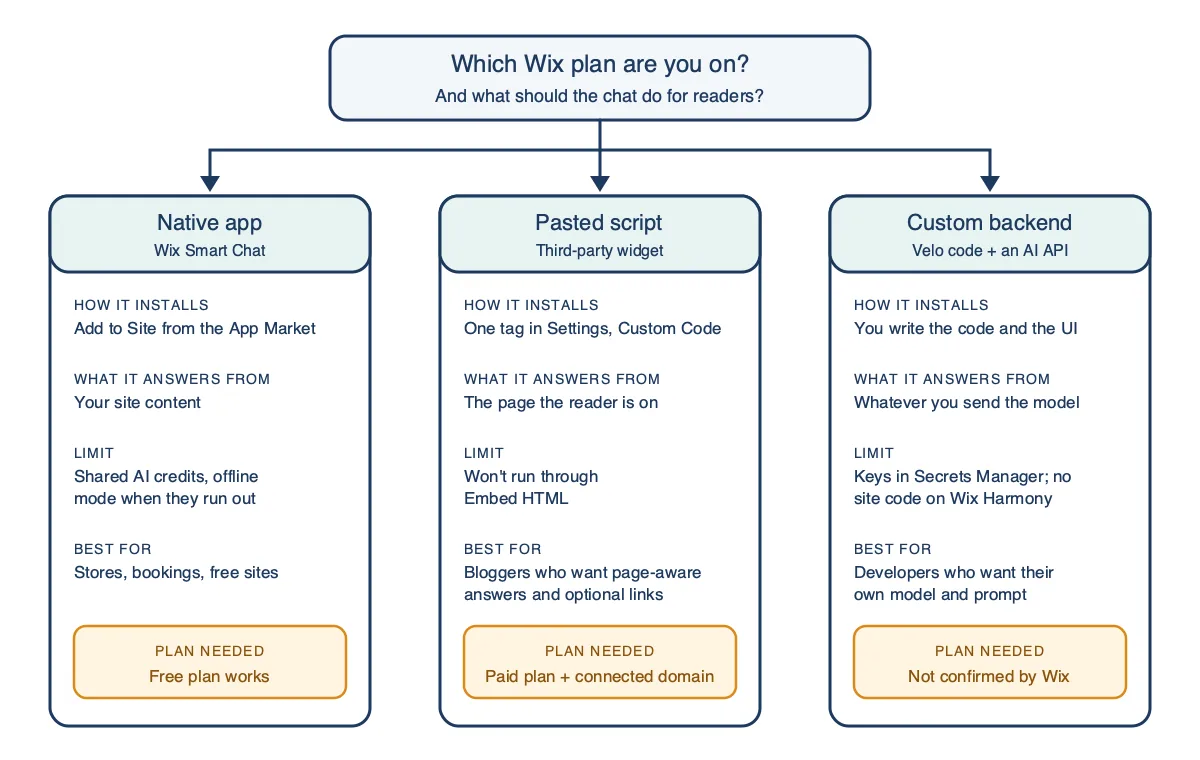
The DIY route gives you full control, but Wix’s developer docs warn against putting API keys in custom code. Your AI provider key belongs in Velo’s Secrets Manager and backend code, and sites built in Wix Harmony, one of Wix’s site editors, don’t support site code at all. You also build the chat interface, message history, rate limits, and cost caps yourself.
Your Wix plan and your goal for the chat usually settle which route makes sense. A store, a bookings site, or a free-plan site fits Smart Chat, while a paid-plan blogger who wants page-aware answers and optional links fits a script-based Wix AI chatbot. Developers who want their own model and prompt are the ones who should take on a DIY build.
Step 2 - Check Your Wix Plan, Because Embed HTML Is Not a Free Workaround
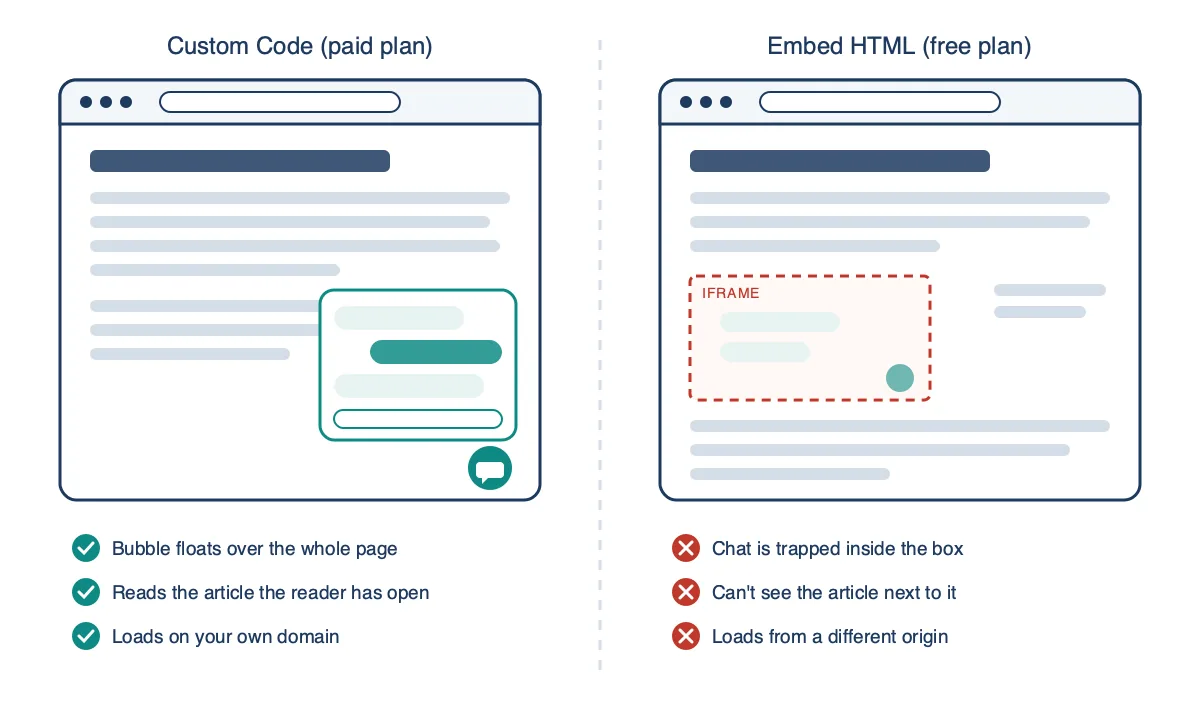
Custom Code, the Wix feature that loads a script on every page, only runs on a published site with a connected domain. Wix’s developer docs add that you can only connect domains to a Wix site with an active Premium plan. That means a free wixsite.com address can’t use Custom Code, so any paid Wix plan is the entry ticket.
Free-plan owners usually find Embed HTML next, under Add Elements and Embed Code, and paste their chat script there. Wix’s own Velo documentation explains why that fails for chat widgets: “The HTML component creates a sandboxed environment (an iframe) that doesn’t have direct access to the other elements on your page. This means that widgets or libraries that need access to the rest of your page won’t work in an HTML component.” (Wix Developers)
Inside that iframe, the ChatAds widget can’t float its bubble over your page or read the article sitting next to it. The box also loads from a different address than your domain, so a widget locked to your domain refuses to answer. That rules out Embed HTML as a working ChatAds install.
Wix’s Custom Element isn’t an escape hatch either, because Wix requires a Premium plan, a connected domain, and no ads on the site to use it. On a free plan, that leaves Smart Chat or an upgrade.
- Your Wix site is published, not just saved in the editor.
- The site is on a paid Wix plan.
- A custom domain is connected to the site.
- You are not counting on Embed HTML to run the chat.
Step 3 - Copy Your Widget Snippet and Lock It to Your Live Domain
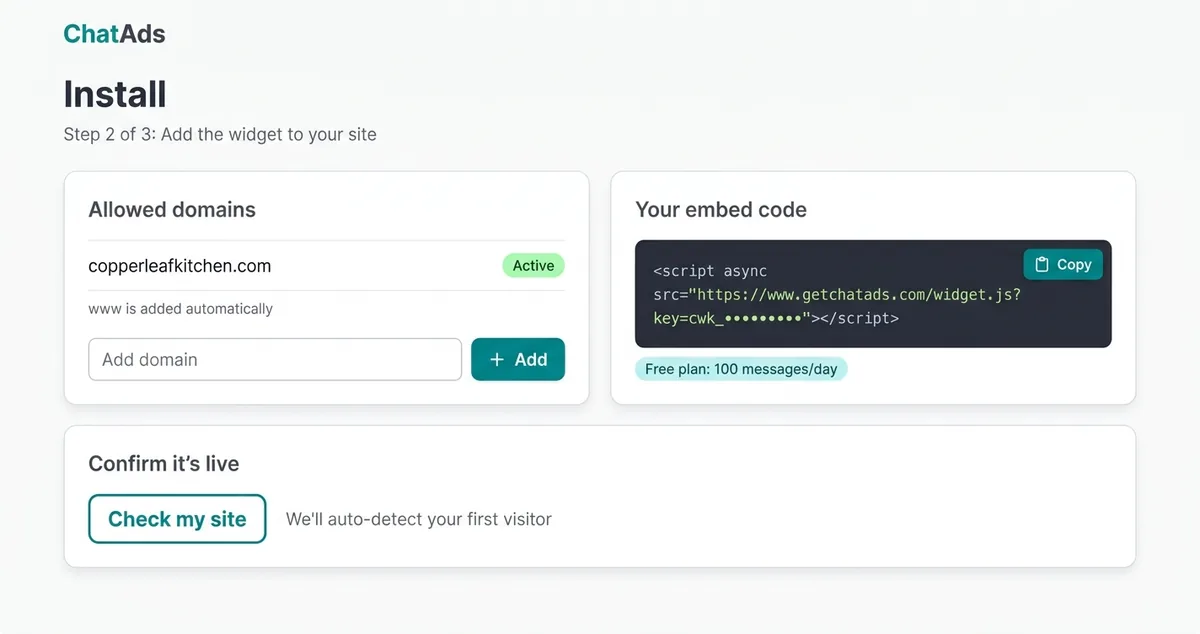
Once your plan is sorted, sign up for ChatAds and copy the one-line script from the install step in the dashboard. It loads with the async attribute and carries your widget key in the ?key= parameter, so keep both exactly as they are.
<script async src="https://www.getchatads.com/widget.js?key=YOUR_WIDGET_KEY"></script>
The dashboard fills in your own key, which starts with cwk_, so you can paste the tag as copied. The widget works out of the box because it reads the page it’s on, so you don’t have to upload or train it on anything. The free tier covers 100 messages a day with no credit card, but Wix’s half of the setup still needs a paid plan, so the full install isn’t free.
Onboarding adds the domain you enter to the widget’s Allowed Domains list, and that list decides where the chat will answer. Matching uses the exact host plus its www variant, with no wildcard for subdomains. Enter the domain your readers actually see, not the wixsite.com address or the editor’s host.
Finish this step before you test heavily, because an unverified widget caps each visitor at 20 messages a day. Verification needs a public domain in Allowed Domains and ChatAds detecting the widget live on that domain. If you ever rotate your widget key, the old snippet stops working and you’ll need to paste the new one.
Adding yourblog.com also covers www.yourblog.com, since the www pairing is automatic. A subdomain like shop.yourblog.com is a separate host and needs its own entry.
Step 4 - Paste the Snippet in Settings, Custom Code, With Three Settings
Wix’s help center lays out the Custom Code click path, and these steps install any Wix chat widget using Wix’s own labels.
- Open Settings in your site’s dashboard and find the Development & integrations section.
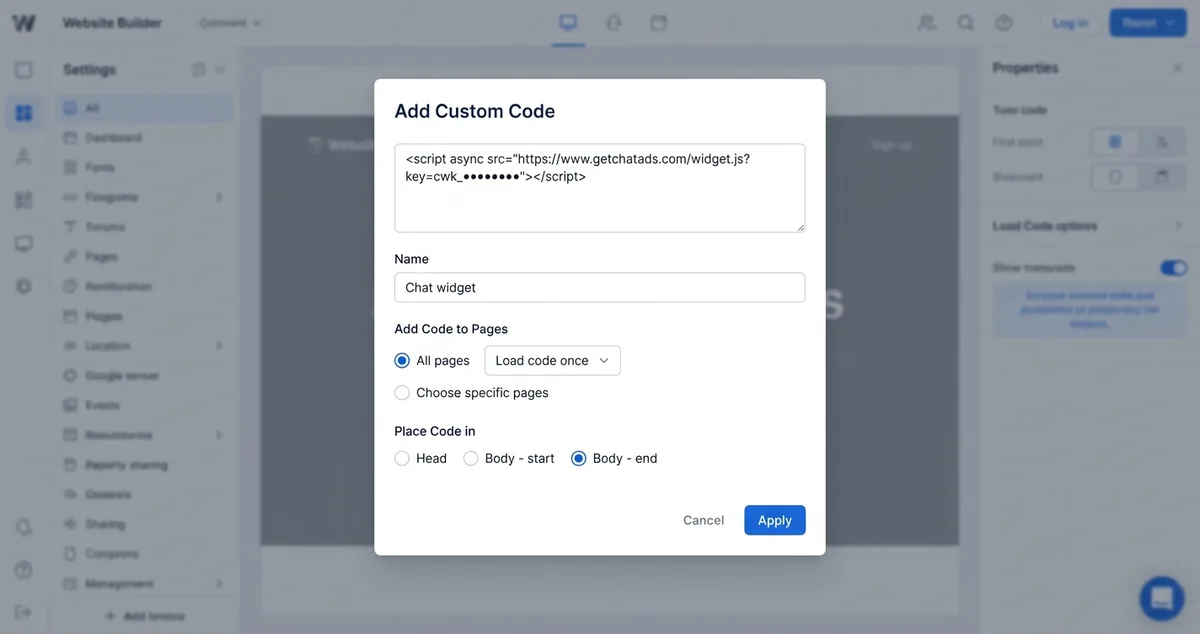
- Click Custom Code there, then click + Add Custom Code at the top right.
- Paste your snippet into the text box and give it a name you’ll recognize later.
- Under Add Code to Pages, choose All pages, which also covers pages you create in the future.
- Choose to load the code once per visit rather than on each page your visitor opens.
- Under Place Code in, choose Body - end, then click Apply to save the snippet.
Loading the code once per visit works here because the widget notices when a reader moves to a new page and re-reads that page before the next message. Body - end is a safe spot too, since the script attaches to the page and waits for it to finish loading.
Skip any Google Tag Manager install option on Wix and paste the script tag directly instead. Wix lists Google Tag Manager among the tracking scripts that don’t work through custom code, so a GTM container is the wrong home for this snippet. If page speed worries you, our breakdown of whether an AI chat widget will hurt your SEO covers speed and rankings.
| Setting | Pick this |
|---|---|
| Add Code to Pages | All pages |
| Loading behavior | Once per visit |
| Place Code in | Body - end |
| Final button | Apply |
Step 5 - Confirm It Works on the Published Site, Then Decide on Links
Don’t judge the install from the Wix editor, because the snippet never runs there. Wix’s developer docs say it directly: “Custom code doesn’t take effect in the editor and only runs on the published site.” (Wix Developers)
A working install should pass these four quick checks, all done on the live site in a normal browser tab.
- The chat bubble shows up in a bottom corner of the page.
- A question about the post you’re reading gets a reply that uses that post.
- Viewing the page source shows a script tag pointing to widget.js.
- The dashboard’s install step switches to “Tag installed” with the last load date.
The dashboard only flips to “Tag installed” after a real page load on your site, and caching can delay it. If it still shows nothing after a few visits, jump to the troubleshooting step below.
Monetization is the payoff for a blog, and it stays off until you switch it on. ChatAds has two independent toggles, one that reuses the affiliate links already on your page and one that adds Amazon links with your own Associates tag, currently for the US store only. Our guide to adding a chatbot to an affiliate blog goes deeper on how those links earn.
Every link uses your own tags, so commissions are paid to you directly by Amazon or your affiliate network. Add an affiliate disclosure to your site so readers know chat links can earn you money. Our guide to disclosing ads in AI chats covers what the FTC expects.
ChatAds is one script tag in Custom Code, with a free tier of 100 messages a day and no card required. Affiliate links are optional, use your own tags, and we take 0% of commissions.
Step 6 - Fix a Missing Wix Chatbot, a Domain Change, or Wrong Pages
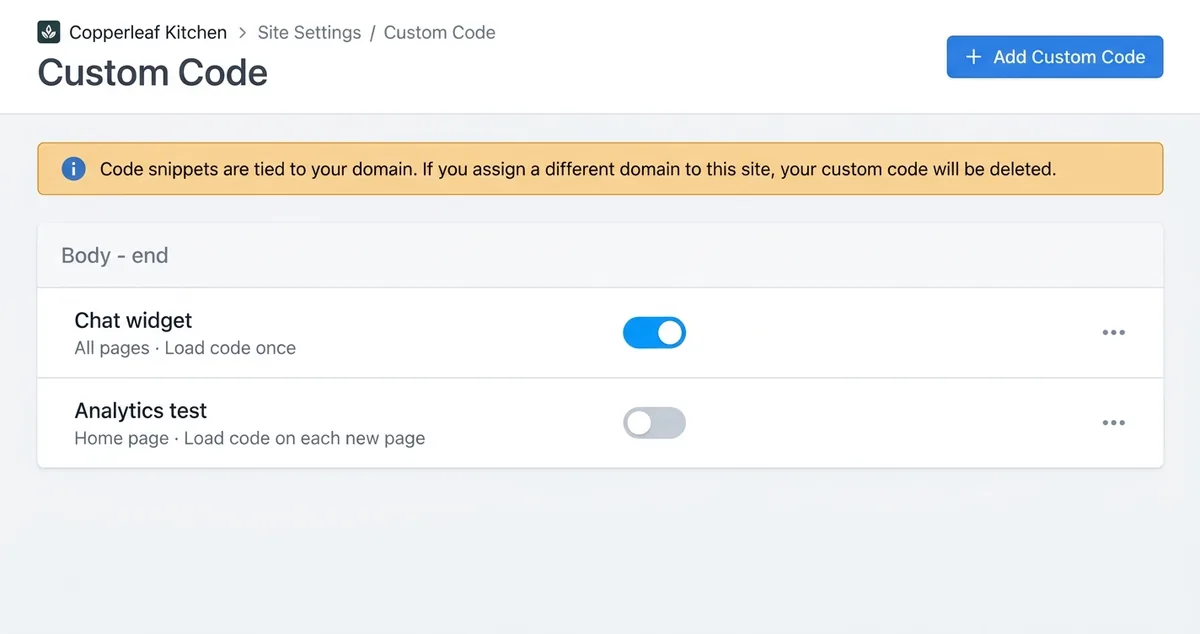
When the widget is missing on the live site, check that the snippet’s toggle is on and that it’s set to All pages. If other snippets are installed, Wix suggests turning each one off in turn and testing after every change. Wix also added stricter frontend security for custom code in December 2025, so some older snippets may be blocked until the provider updates them.
Don’t expect Wix to help you fix third-party code problems. Its help center says, “Wix does not provide support for technical issues with third-party code snippets. If you have an issue with your code snippet, please contact the provider directly.” (Wix Help Center) That means your widget’s own support team is the right first call.
| Symptom | Likely cause | Fix |
|---|---|---|
| No bubble on live site | Snippet toggle off | Turn the toggle on |
| Wrong page scope | Set it to All pages | |
| Clash with another snippet | Disable others one at a time | |
| Gone after domain change | Wix deleted the snippet | Paste the snippet again |
| New domain not allowed | Add it to Allowed Domains | |
| Missing on some pages | Wix targeting, once per visit | Use widget path rules, test |
| Odd colors or position | Theme CSS winning | Change widget settings |
A domain change causes the most confusing failure, because Wix ties code snippets to a specific domain. Assign a different domain and Wix deletes your code snippets. Paste yours again and add the new domain to the widget’s allowed-domains list, but skip secondary domains, since they redirect to your primary one.
For page targeting, use the widget’s own include and exclude path rules, which accept up to 100 paths, instead of limiting the snippet to specific pages in Wix. If the code loads once per visit, a visitor whose first page is excluded may not see the widget on later pages in that visit. Test any rule you set before you trust it.
Odd styling usually traces back to your Wix theme, because theme CSS can win on some of the widget's properties. Change the accent color or bubble position in the widget settings rather than editing the theme itself.
Once the snippet is live on your paid Wix plan, the rest is choosing which pages it answers on and whether links switch on. If you also run a Blogger site, our Blogger chatbot guide covers the same kind of script install there.
On other platforms the click paths change, but the decisions about plans, domains, and links mostly stay the same. Our WordPress chatbot guide walks through the plugin route for self-hosted sites. For Ghost, the Ghost chatbot guide covers the same script pasted into Code Injection.
Frequently Asked Questions
How do I add an AI chatbot to my Wix site?
Copy your chatbot's script tag, then go to Settings in your Wix dashboard and open Custom Code under Development & integrations. Click + Add Custom Code, paste the snippet, choose All pages, load the code once per visit, and pick Body - end, then click Apply. Check the result on your published site, because custom code doesn't run in the editor.
Can I add a chatbot on the free Wix plan?
Not with Custom Code, because it needs a connected domain and Wix only connects domains to sites with a Premium plan. Embed HTML is available on free sites, but it runs code in a sandboxed iframe that can't reach the rest of your page, so a floating, page-aware chat widget won't work there. On a free plan, Wix Smart Chat running on your daily AI credits is the realistic option.
How much does a chatbot on Wix cost?
Wix Smart Chat is free to install and runs on your plan's AI credits, and a free Wix site gets 30 credits a day, up to 120 a month. ChatAds has a free tier of 100 messages a day with no credit card, but installing it through Custom Code needs a paid Wix plan with a connected domain. A DIY build adds your AI provider's token bills on top of the Wix plan.
Does Wix have a built-in AI chatbot?
Yes, Wix Smart Chat is Wix's native AI and manual chat app, and it replaced Wix AI Site Chat for new sites in March 2026. It answers visitors from your site content and runs on the AI credits in your Wix plan, with a free site getting 30 credits a day up to 120 a month. Wix doesn't document any affiliate links or revenue share for site owners in Smart Chat.
Why doesn't my chatbot show in the Wix editor preview?
Wix's developer docs say custom code doesn't take effect in the editor and only runs on the published site. Open your live domain in a normal browser tab to test it. If your widget is locked to your domain, it also won't answer on any other host.
Why did my Wix custom code disappear after I changed domains?
Wix ties code snippets to a specific domain and deletes them when you assign a different domain to your site. Paste the snippet again in Custom Code, and add the new domain to your widget's allowed-domains list. Secondary domains redirect to the primary one, so they don't need their own snippet.
Can a chatbot on my Wix blog earn affiliate commissions?
It can if the widget supports affiliate links, which Wix Smart Chat doesn't document. ChatAds offers optional in-chat links that either reuse the affiliate links on your page or add Amazon links with your own Associates tag, and it takes 0% of commissions. Add an affiliate disclosure to your site so readers know the links can earn you money.