Ghost runs more than 30,000 independent publications in 2026, yet it still ships without any way for readers to chat with a post. Its own dashboard counts 30,547 active customers, and they include solo newsletters as well as paid news sites with years of archives.
Those readers still show up with specific questions, like which lens to buy or whether a recipe works without eggs. Ahrefs found that AI Overviews cut the click-through rate for the top organic result by 58%, so every reader who does reach your post is one you want to keep there.
Adding a free AI chatbot to a Ghost website comes down to one script tag pasted into Code Injection. The decisions that matter come before the paste, from which kind of AI chatbot fits your blog to whether your plan and theme will load it at all.
Choose a chatbot by what it knows about your posts, confirm your theme outputs footer code, paste the tag into Settings, Advanced, Code Injection, Site Footer, and test on a real phone. Affiliate links are an optional extra once the answers hold up.
Ask ChatGPT to summarize the full text automatically.
Step 1 - Decide Which Kind of AI Chatbot Your Ghost Blog Needs
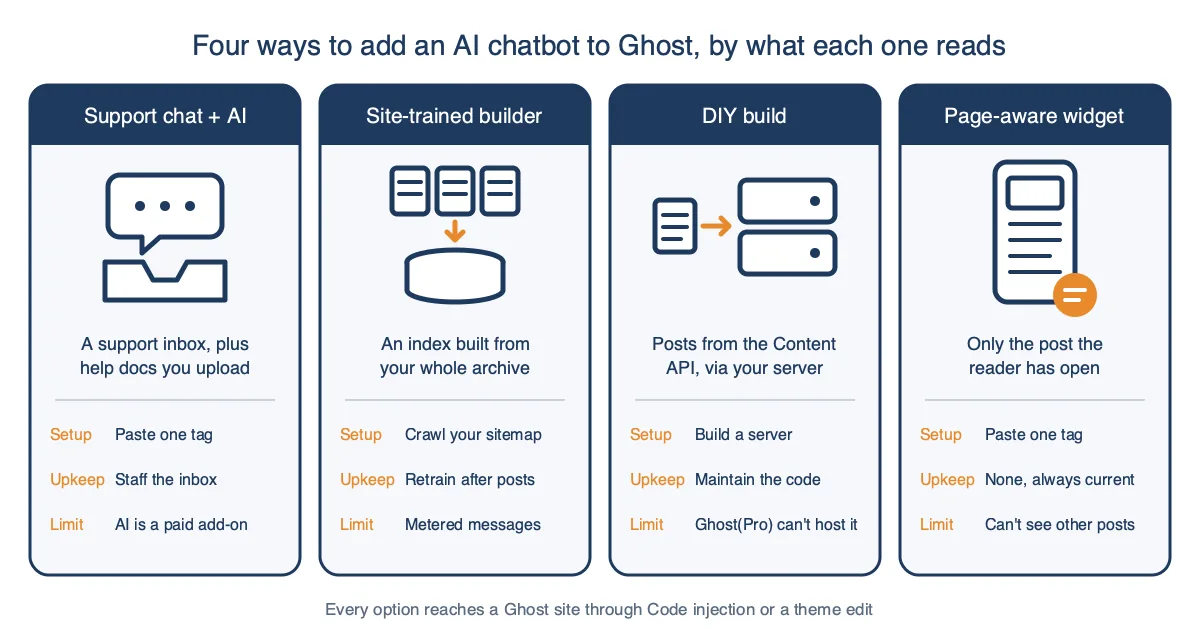
Ghost 6 has no reader-facing chat or AI assistant built in, so every option reaches your site through Code Injection or a theme edit. The official integrations directory lists LiveChat and Intercom for chat, and both are support desks that sell AI as an add-on.
Support tools like Crisp, Tidio, and Intercom were built for answering customers, and the AI part is usually where the free plan stops. Crisp’s free plan comes with no AI credits, and Intercom offers only a trial before its Fin agent bills per outcome. Tidio is the most generous of the three, with 50 Lyro conversations free for the life of the account.
Site-trained builders such as Chatbase, Boei, and CustomGPT crawl your sitemap and answer from an index of your archive. That suits a deep back catalog on one subject, but the index falls behind every time you publish, and their free offers are mostly trials.
The DIY route pairs Ghost’s Content API with a small model like gpt-5-nano, which costs $0.05 per million input tokens. Ghost’s docs say Content API keys “only ever provide access to public data” (source), but your model key can never sit in the browser, so you need a server that Ghost(Pro) won’t host for you.
A page-aware Ghost AI chat widget reads the post a reader has open and answers from it, so there’s nothing to train or keep in sync. The trade-off is scope, because it can’t answer questions about posts the reader hasn’t opened. For a vendor-by-vendor look, our roundup of AI chat widget tools for Ghost blogs compares five of them.
| Approach | Examples | How it works | What "free" means | Main con |
|---|---|---|---|---|
| Support chat with an AI add-on | Crisp, Tidio, Intercom Fin | Live chat inbox with an AI agent layered on top | Crisp has no AI credits; Tidio gives 50 Lyro conversations; Fin is a trial, then $0.99 per outcome | Built for support tickets, not questions about a post |
| Site-trained builder | Chatbase, Boei, CustomGPT | Crawls your sitemap into a searchable index | Mostly trials; Chatbase Hobby starts at $40 a month | Index goes stale, retraining and metered messages |
| DIY build | Content API plus an LLM | Your server fetches posts and calls a model | Model costs are small, hosting and your time are not | Needs a server and code you maintain |
| Page-aware widget | ChatAds and similar widgets | Reads the post the reader has open | 100 reader messages a day, no card | Doesn't know posts outside the open page |
Step 2 - Check Your Ghost Plan and Theme Before You Paste Anything
Ghost(Pro)’s Starter plan costs $18 a month on yearly billing and limits you to official themes with no custom integrations. Ghost’s pricing page doesn’t list code injection among the Starter exclusions, and its help docs show no plan caveat either. If Settings, Advanced doesn’t show Code injection on your plan, ask Ghost support before you pay for a chatbot.
Publisher at $29 a month and Business at $199 a month allow custom themes and integrations, and self-hosted Ghost has no plan limits. Any theme edit, like the posts-only helper in Step 5, needs a custom theme, so it stays off the table on Starter.
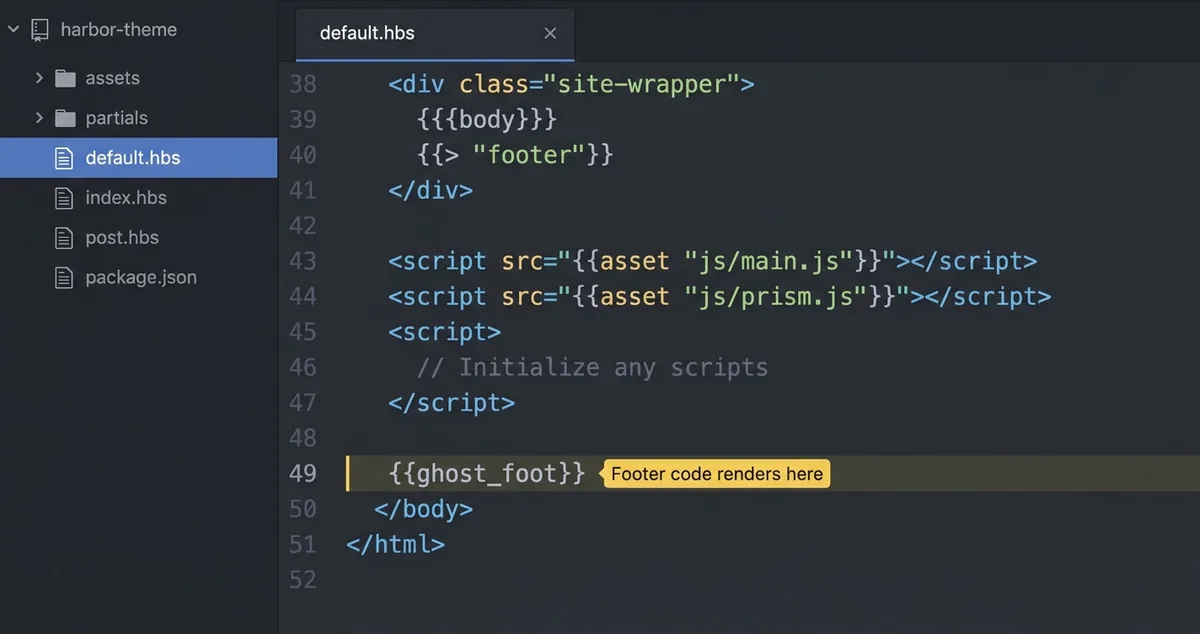
Your theme matters just as much, because footer code only appears where the theme calls the `` helper. Ghost’s theme docs say it “belongs just before the </body> tag in default.hbs” (source), and a theme that leaves it out drops your script without showing any error.
Official themes like Casper and Source include the helper, so this check matters most for older, marketplace, or hand-built themes. Ghost 6 also removed AMP, which means there’s no stripped-down copy of your posts where a chatbot would quietly fail to load.
Confirm Code injection shows up under Settings, Advanced on your plan, and if you run a custom theme, search default.hbs for ghost_foot and make sure it sits just above the closing body tag.
Step 3 - Get a One-Line Embed Code and Lock It to Your Domain
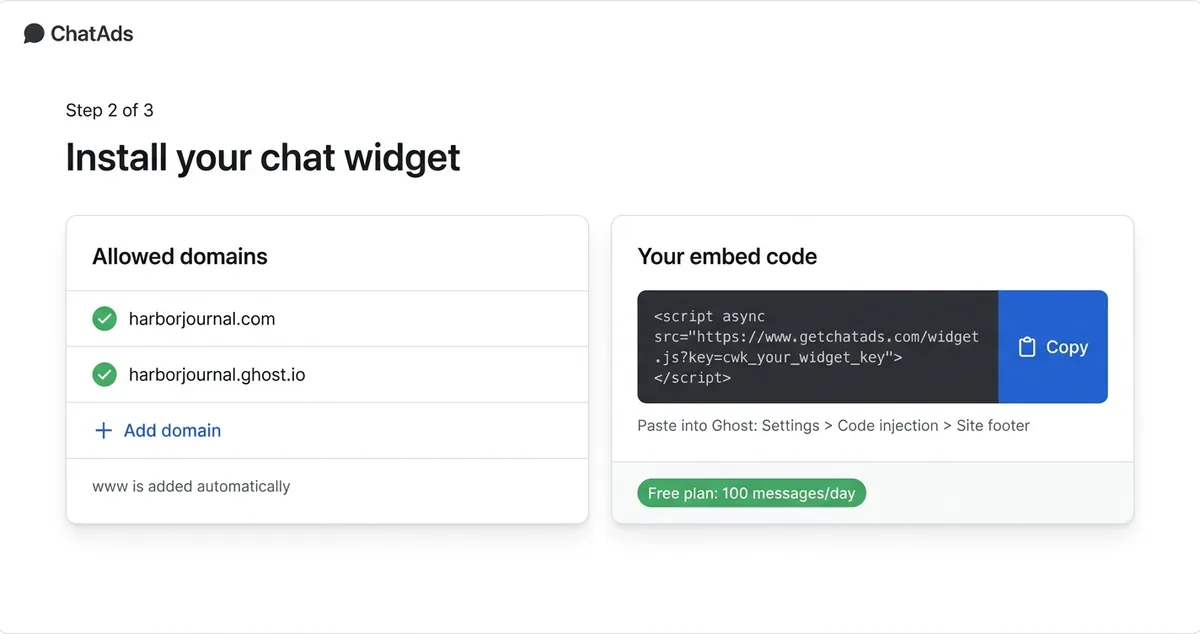
A good chatbot embed for Ghost is a single async script tag with a public site key, plus a list of domains allowed to use it. Anything longer, like a block of setup JavaScript or an iframe you size by hand, is harder to debug inside Ghost’s small code injection box.
The domain list is what stops someone from copying your tag onto their own site and spending your message quota. Allow the custom domain your readers see in the address bar, and add your yoursite.ghost.io address too if you still preview the site there.
ChatAds is one example of an embed built this way, and the setup takes a few minutes. You sign up, enter your Ghost domain, and copy a tag whose cwk_ key only works on the domains you list, whether or not readers type the www. The script is about 19 KB gzipped, and the free plan covers 100 reader messages a day without a credit card.
Size and loading order decide whether a chat widget hurts your SEO far more than the bubble itself does. The async attribute keeps the download from holding up the page, and Ghost’s footer slot places the tag below your post content in the HTML.
<!-- Your ChatAds embed code (the key is unique to your site) -->
<script async src="https://www.getchatads.com/widget.js?key=cwk_your_widget_key"></script>
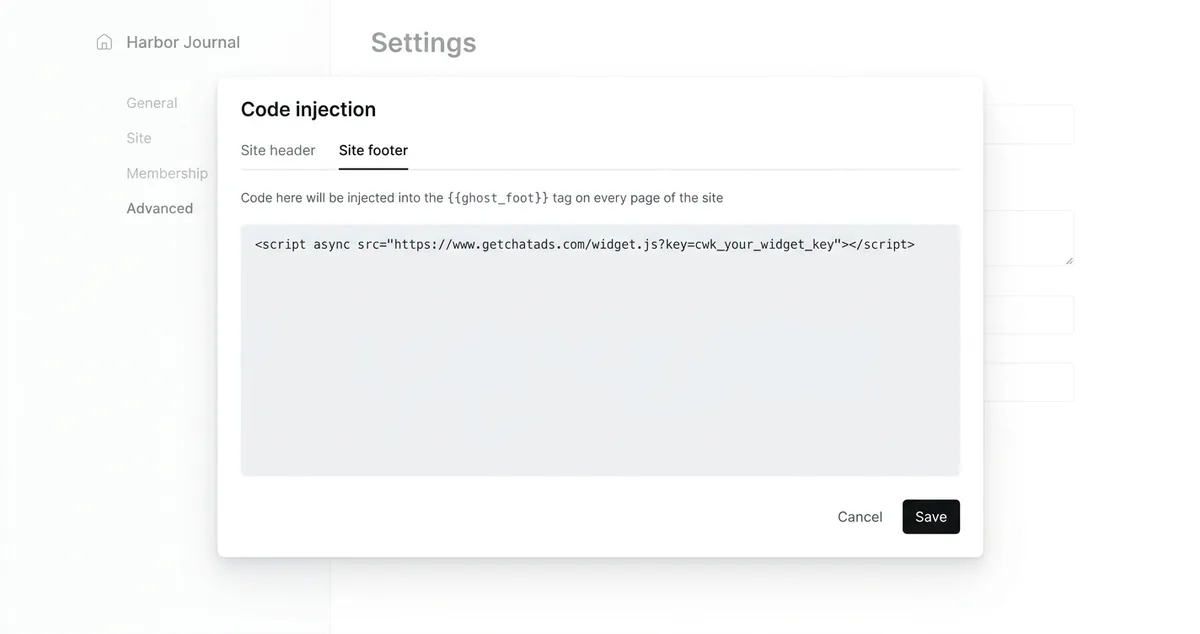
Step 4 - Paste It Into Settings, Advanced, Code Injection, Site Footer
Ghost’s help center says code injection lets you “easily add CSS styles, custom fonts, meta tags, and scripts to your site header and footer” (source). Site-wide injection lives in Ghost Admin, and it’s the only step a Ghost code injection chatbot install really needs.
- Open Settings. Sign in to Ghost Admin at yoursite.com/ghost and click the gear icon at the bottom of the left sidebar.
- Find Code injection. Scroll to the Advanced section, or type “code” into the settings search, and click Open next to Code injection.
- Use the Site footer tab. Paste the script tag into Site footer, leave Site header empty, and click Save.
Vendor guides disagree on this step, with FastBots pointing Ghost users to the header while most others say footer. The footer is the better default, because `` renders just before </body> and header code loads ahead of everything in your post. An async tag behaves well in either spot, but the footer keeps any script you don’t control out of the way of your content.
Your changes go live the moment you click Save, with no theme upload or rebuild. Open any post in a new tab, and the bubble should appear in the corner within a few seconds.
One tag in Site footer covers every post, and include and exclude path rules in the dashboard keep it off pages like your homepage or signup page. You can preview the widget on your own posts before you paste anything.
Step 5 - Show the Chatbot Only on Posts (Per-Post Injection or Path Rules)
A site-wide footer puts the chatbot on your homepage, tag archives, and signup page too, where there’s no post to answer from. There are three ways to narrow it down, and the right one depends on your plan and how many posts you’ve already published.
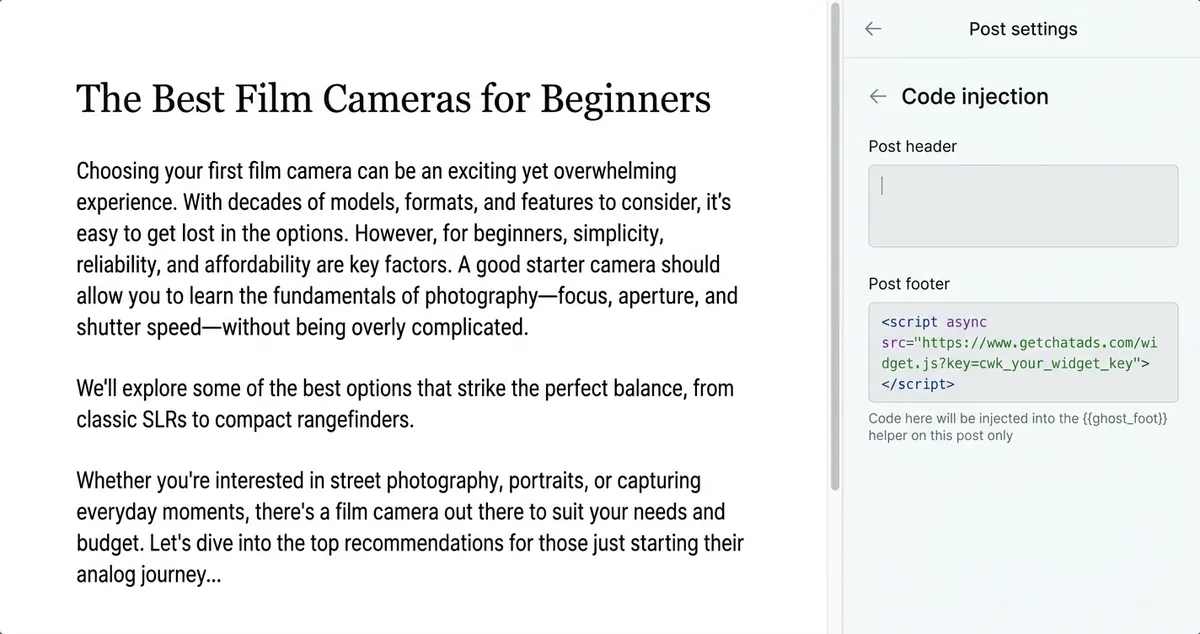
Per-post code injection is built right into the Ghost editor’s post settings. Open a post, click the settings icon in the top right, scroll to Code injection, and paste the tag into Post footer. The catch is upkeep, because you repeat it on every new post and your back catalog stays bare until you edit each one.
Path rules are the low-maintenance option if your widget supports them, since one site-wide tag covers new posts automatically. Unless you use custom routes, Ghost puts posts at the root, like yoursite.com/post-slug/, so exclude rules for the homepage, /tag/, /author/, and /signup/ work better than trying to include posts.
Without path rules, you can still check the post-template class that Ghost adds to the body of every post, straight from Site footer on any plan. On a custom theme, the `` helper in default.hbs does the same job, though that theme edit isn’t available on Starter.
Members-only posts need no special setup with a page-aware widget, because it reads the page inside the visitor’s browser. A free reader on a paid post sees only the paywall preview, and that preview is all the chatbot can see too.
<!-- Option A: paste into Site footer (any plan). Replace the src with your widget's script URL -->
<script>
  if (document.body.classList.contains('post-template')) {
    var s = document.createElement('script');
    s.async = true;
    s.src = 'https://your-widget-host.com/embed.js?key=YOUR_KEY';
    document.body.appendChild(s);
  }
</script>
Step 6 - Test It on a Real Phone, Then Decide Whether to Monetize
Test in a private window first, where you aren’t signed in to Ghost Admin and no cached copy hides the install. Open a full post, ask about a detail only that post covers, and check that the first reply actually answers it. Accurate answers on your own posts decide whether readers trust an AI assistant on your blog at all.
Then repeat the test on an actual phone with your usual ad blocker turned on, since some blocklists catch chat scripts. Look at the bottom corners as well, and check Settings, Membership, Portal if the floating signup button is on, since it can sit right where a chat bubble lands.
| Symptom | Likely cause | Fix |
|---|---|---|
| No bubble anywhere | Theme doesn't call |
Add the helper to default.hbs, or paste and save again |
| Works on ghost.io, not your domain | Custom domain missing from the widget's allowed list | Add the domain readers see in the address bar |
| Bubble overlaps the signup button | Both sit in a bottom corner | Move the bubble to the other corner or hide the Portal button |
| Missing on phones only | Ad blocker or a hide-on-mobile setting | Retest with blockers off and check the widget settings |
| Only some posts show it | Per-post injection added to new posts only | Move the tag to Site footer and use path rules |
Monetization is optional, and most Ghost publishers already earn through memberships rather than ads. Ghost says publications on its platform earn more than $100 million a year in revenue. Affiliate links inside chat answers add a second income line that doesn’t depend on someone buying a subscription.
ChatAds can add affiliate links to replies using your own tags, and it takes 0% of the commission. It works with affiliate links you already use in your posts or with an Amazon Associates tag, and its Amazon matching is focused on US shoppers.
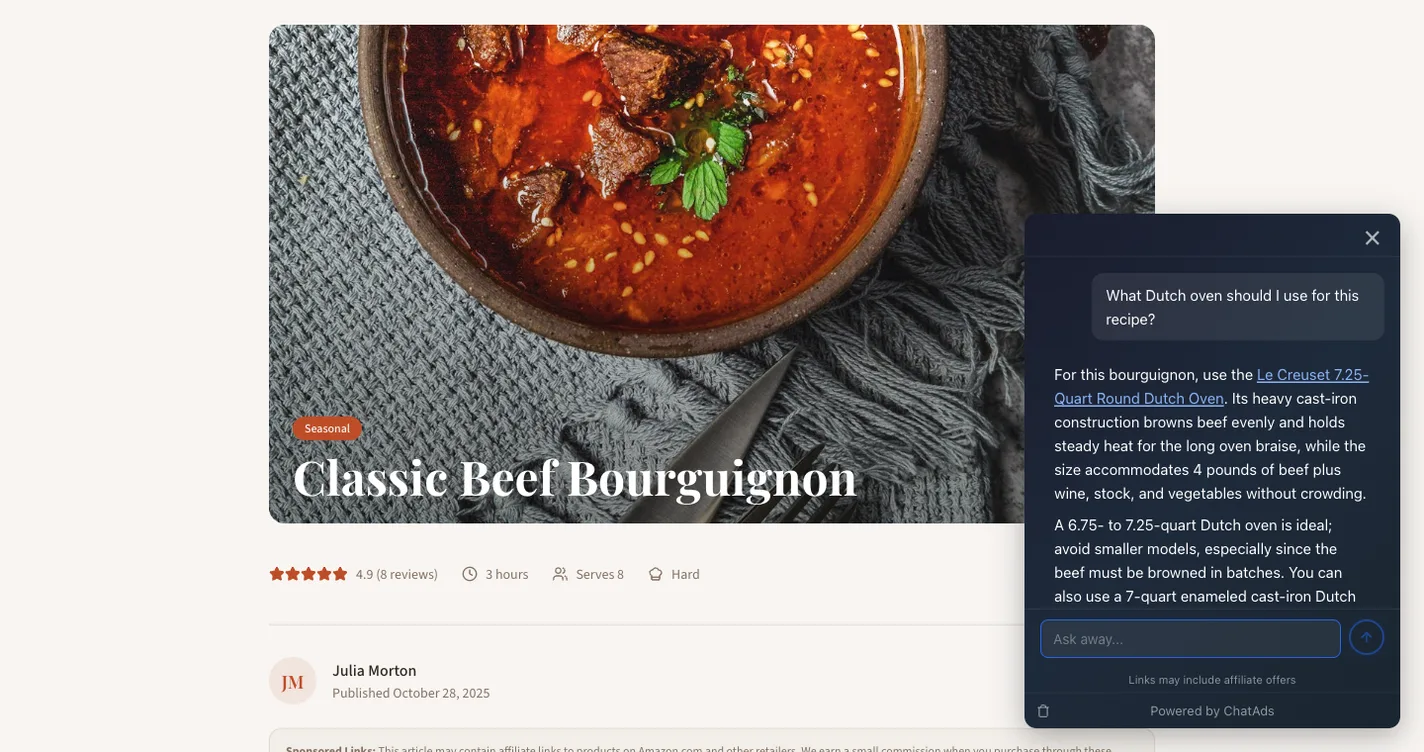
Put the disclosure inside the chat, as close to the link as possible. The FTC’s guidance for affiliates says “The closer the disclosure is to your recommendation, the better” (source), and a chat reply sits a long way from your site’s disclosure page. When monetization is on, ChatAds shows a “Links may include affiliate offers” line at the bottom of the chat panel.
Site footer is where a chatbot belongs on most Ghost blogs, and the install takes a couple of minutes once you have the tag. Per-post injection and theme edits only pay off when the bubble on your homepage or signup page gets in the way.
What the chatbot knows is the choice that shapes everything after the paste. A support desk handles tickets, a site-trained bot answers from an index you maintain, and a page-aware widget answers from the post in front of the reader. Start with whichever fits how your readers ask questions, and try a free option like ChatAds before you commit to a paid plan.
Frequently Asked Questions
How do I add an AI chatbot to my Ghost blog?
Copy your chatbot's embed code, then in Ghost Admin go to Settings, Advanced, Code injection and paste it into the Site footer tab. Click Save, and the chatbot appears on every page of your site within seconds, with no theme upload or rebuild.
Is there a free AI chatbot for Ghost?
Yes, though many "free" Ghost chatbots are really trials or credit-limited demos. ChatAds is free for 100 reader messages a day with no credit card, and Tidio includes 50 free Lyro AI conversations for the life of the account.
Does Ghost have a built-in AI chatbot?
No. Ghost 6 has no reader-facing chat or AI assistant, so every chatbot reaches your site through Code Injection or a theme edit. Ghost's integrations directory lists LiveChat and Intercom for chat, and both are support desks with AI sold as an add-on.
Can I add a chatbot to Ghost on the Starter plan?
Ghost doesn't list code injection as a Starter exclusion, so a Site footer install should work on Starter. Theme edits like a posts-only template helper need a custom theme, which Starter doesn't allow, so ask Ghost support if Code injection is missing from your settings.
Should I put a chatbot script in Ghost's Site header or Site footer?
Use Site footer. Ghost renders footer code through the ghost_foot helper just before the closing body tag, so the script loads after your post content instead of ahead of it.
Can I show a chatbot only on Ghost posts and not my homepage?
Yes, in three ways: paste the tag into each post's Post footer field, use your widget's path rules to exclude the homepage, tag, author, and signup pages, or wrap the script in a check for the post-template body class. ChatAds supports include and exclude path rules, so one site-wide tag covers new posts automatically.