Blogger is still one of the most common homes for a personal blog in 2026, even after years without a major redesign. W3Techs finds it on 70.4% of the websites whose blogging engine it can identify, so plenty of the blogs people read every day still live on Blogspot.
Readers arrive with specific questions, like a swap for an ingredient or which size to buy, and they expect quick answers. Pew’s 2026 survey found that “About half of U.S. adults now use AI chatbots” (source), and a reader who can’t find an answer in your post will often take the question to one of them instead.
Adding an AI chatbot to Blogger takes one script tag and about ten minutes of work. The harder part is choosing which chatbot for Blogger to paste in, because the right one answers from your own posts and can earn affiliate commissions too.
Pick a chat widget by what it knows about your blog, paste its script into a footer HTML/JavaScript gadget or your theme, then test it on a real phone. Affiliate links and a visible disclosure come last, once you trust the answers.
Ask ChatGPT to summarize the full text automatically.
Step 1 - Decide Which Type of Chat Widget Your Blog Needs
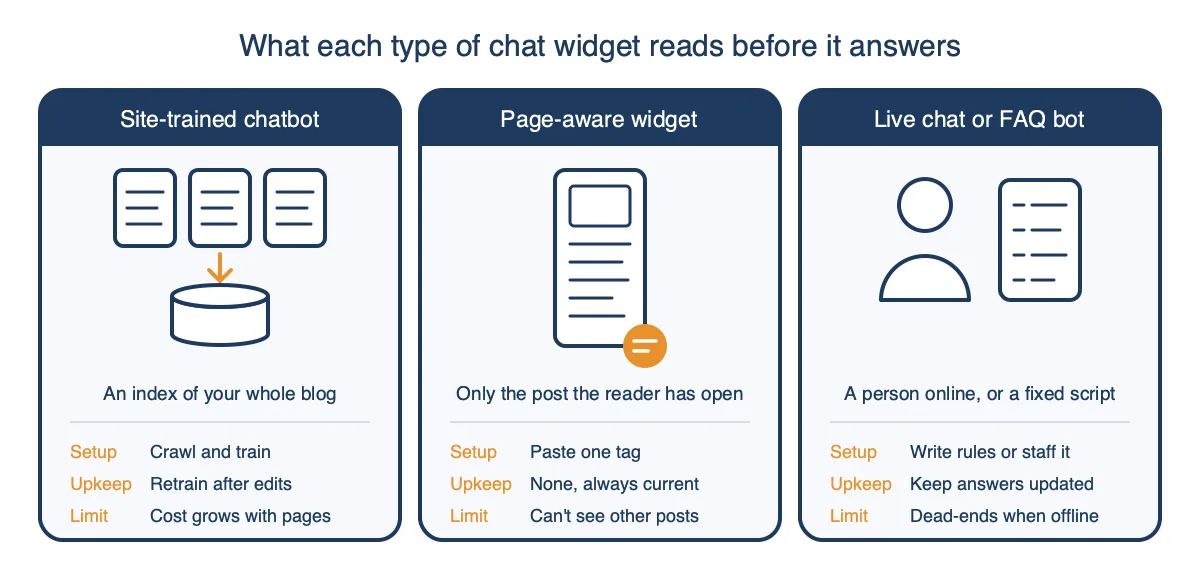
Every chat widget for Blogger looks like the same bubble in the corner of the page, but what the bot knows varies a lot. That one difference decides how much setup you do, what readers can ask, and how the cost grows with your blog.
Site-trained chatbots like Chatbase, SiteSpeakAI, and Elfsight’s AI chatbot crawl your posts or sitemap and build a searchable index from them. They can answer questions that span several posts, which suits a blog with a deep archive on one subject. The trade-off is upkeep, since you retrain when posts change and pricing usually climbs with pages or messages.
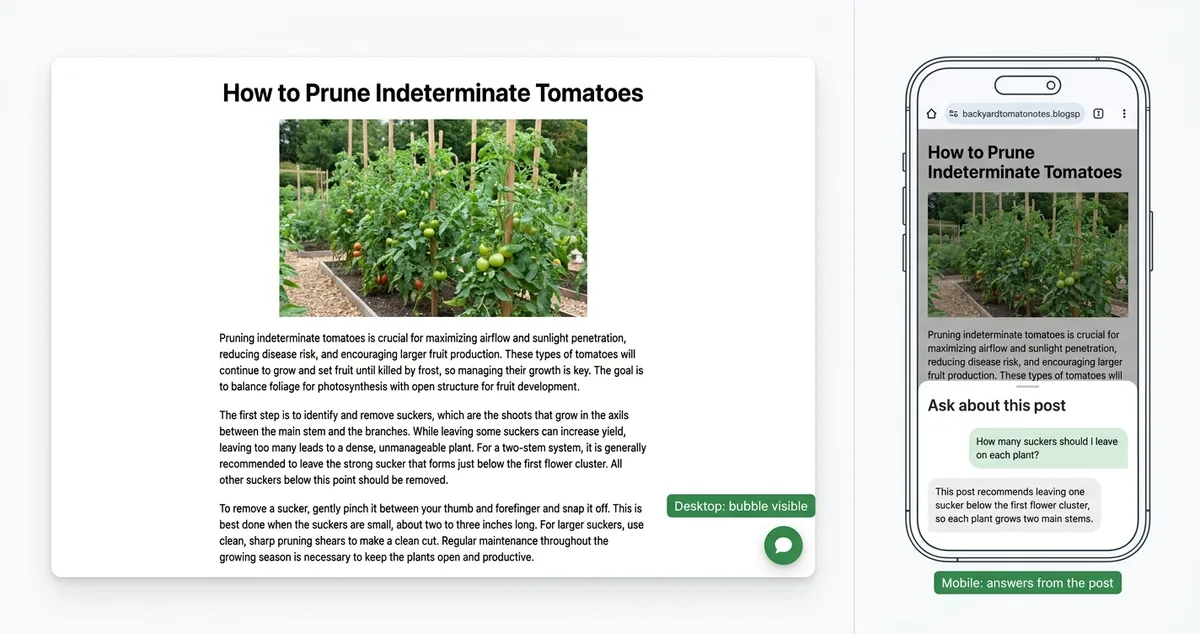
Page-aware widgets read only the post the reader has open, so there’s nothing to train and nothing goes stale. That makes them live as soon as you paste them, but they can’t answer questions about posts the reader hasn’t opened. Live chat tools like Tawk.to and rule-based FAQ bots are the third type, and they need a person online or a script that eventually runs out of answers.
Before you pick, check whether “free” means an ongoing plan or a trial that expires, a split that free, no-code chat widgets for small blogs handle very differently. Also ask what happens to the bubble when you hit the cap, since each visitor matters more now that fewer searchers click through. Pew found that users clicked a traditional search result on 8% of visits when an AI summary appeared, compared with 15% when none did.
| Type | Examples | What it knows | Pros | Cons |
|---|---|---|---|---|
| Site-trained chatbot | Chatbase, SiteSpeakAI, Elfsight | An index of your whole blog | Answers questions that span many posts | Training step, retraining after edits, cost grows with pages or messages |
| Page-aware widget | ChatAds | The post the reader is on | Works on paste, always current, nothing to maintain | Can't answer about posts the reader hasn't opened |
| Live chat or FAQ bot | Tawk.to, rule-based bots | You, or a fixed script | Personal replies, full control | Needs someone online, or dead-ends on new questions |
Step 2 - Get a One-Line Embed Code for Your Exact Blog Address
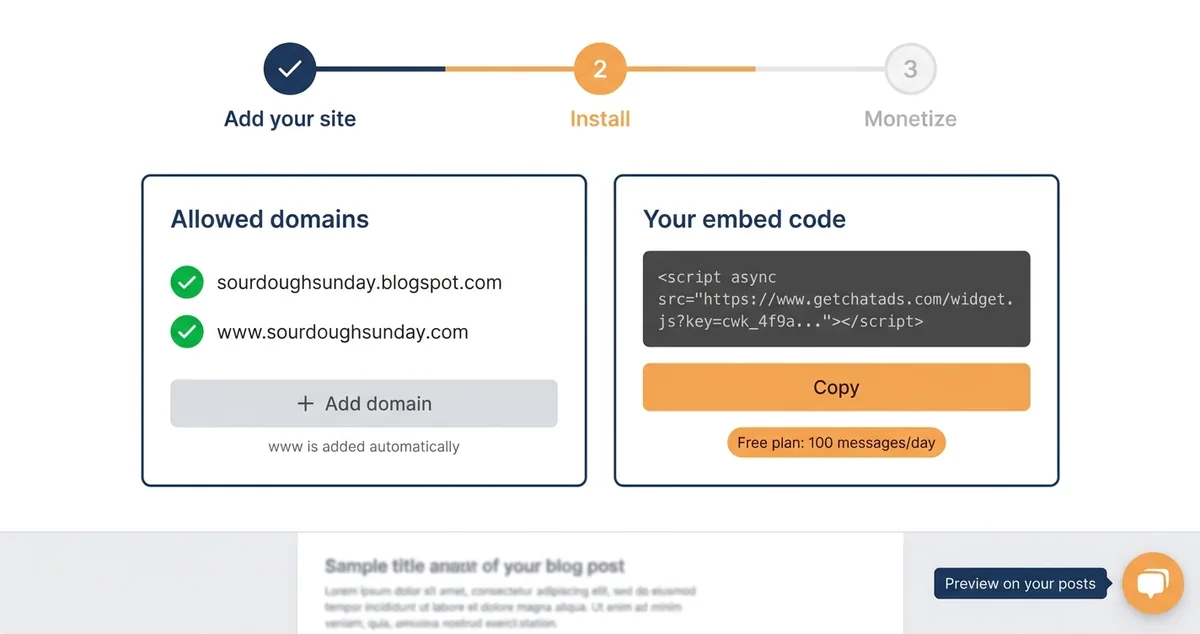
Most widgets tie their embed code to the exact address readers type to reach your blog. For most Blogger sites that address is yourname.blogspot.com, but if you mapped a custom domain, the widget needs that domain listed too. Blogger stopped redirecting readers to country addresses like blogspot.co.uk in 2018, so the address in your browser bar is the one to register.
Look for an embed that is a single script tag, with no setup wizard to finish after you paste it. A single tag drops cleanly into a gadget and is simple to fix when Blogger’s theme editor complains. An async tag also loads after your post content, which matters if you’re wondering whether a chat widget will hurt your SEO. It also comes out just as fast if you change your mind.
With ChatAds, you sign up, enter your blog address, and the dashboard previews the widget on your own posts before you install anything. The blogspot address and a custom domain count as separate entries, though the www version of a domain is added for you. The free plan covers 100 reader messages a day with no credit card, and paid plans start at $29 a month for 500 messages a day.
The tag you copy has three parts to understand before you paste it anywhere. The src points to the hosted script, and the key after ?key= tells the server which blog is asking, so a wrong key or a missing domain means no bubble. The async attribute lets your post finish loading first, and it’s also the part Blogger’s theme editor rejects in Step 4.
<!-- Your ChatAds embed code (the key is unique to your blog) -->
<script async src="https://www.getchatads.com/widget.js?key=cwk_your_widget_key"></script>
Step 3 - Add the Chatbot With the HTML/JavaScript Gadget
The HTML/JavaScript gadget is the easiest way to add a chatbot to Blogger, because you never touch the theme code. Blogger treats the gadget as a small box of raw HTML, and a script inside it runs on every page where that gadget appears.
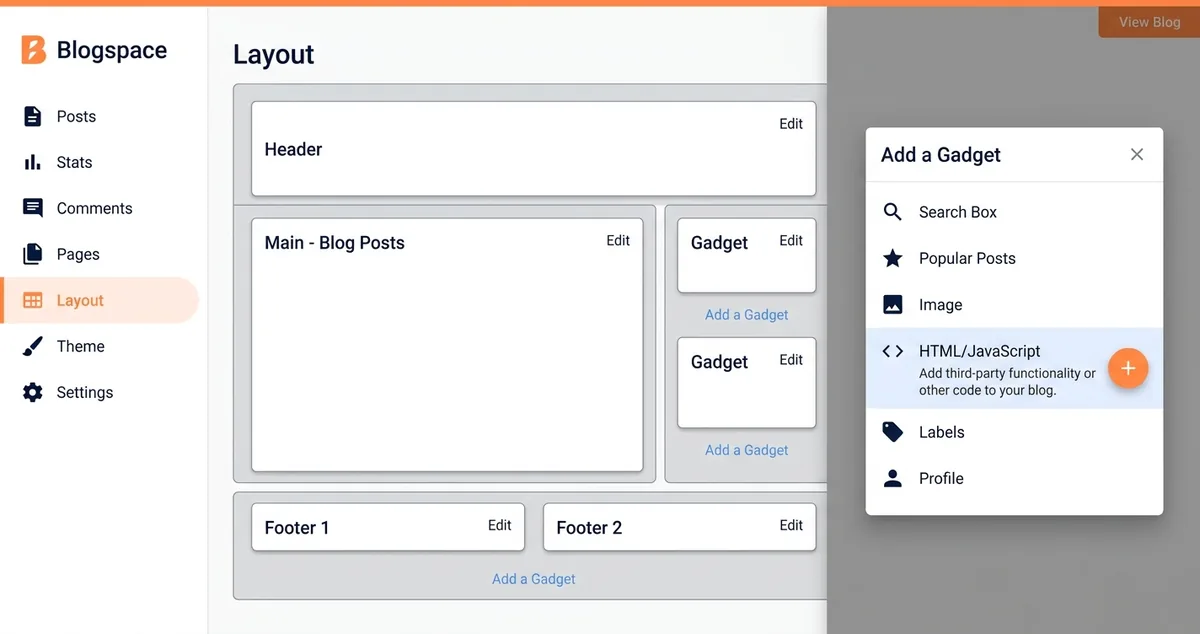
- Open Layout. Sign in to Blogger, choose your blog, and click Layout in the left menu.
- Add a gadget to the footer. Click Add a Gadget in the footer section and choose HTML/JavaScript from the list.
- Paste and save. Leave the title blank, paste the script tag into the content box, and click Save.
Put the gadget in the footer rather than the sidebar, even though the chat bubble floats in the corner no matter where the gadget sits. Older Blogger mobile templates can hide sidebar gadgets on phones, so a sidebar install can work on desktop and disappear for mobile readers.
Section names vary from theme to theme, so if you don’t see one labeled Footer, use the lowest section on the Layout page. If your theme has no section below the posts at all, skip to Step 4 and paste the tag into the theme instead.
Blogger’s own help page warns that “Blog authors who add code or third-party widgets do so at their own risk” (source). That’s a good reason to paste as little code as possible and remove any script you stop using. A short tag is simple to review, and it comes out in seconds if something on the page breaks.
Confirm the gadget sits in the footer section, the title field is empty so no heading shows on the page, and the pasted tag starts with <script and ends with </script> with nothing trimmed.
Step 4 - Or Paste It Into Theme > Edit HTML (and Fix the XML Errors)
Editing the theme directly gives you sitewide control and lets you show the chatbot on posts only, which a gadget can’t do. It also carries more risk, so click Theme, open the menu next to Customize, and download a backup before you change a single line.
Open Edit HTML from the same menu, search for the closing body tag, and paste the script on the line just above it. Keep the script in the theme rather than inside a single post’s HTML view, or the chatbot will only load on that one post.
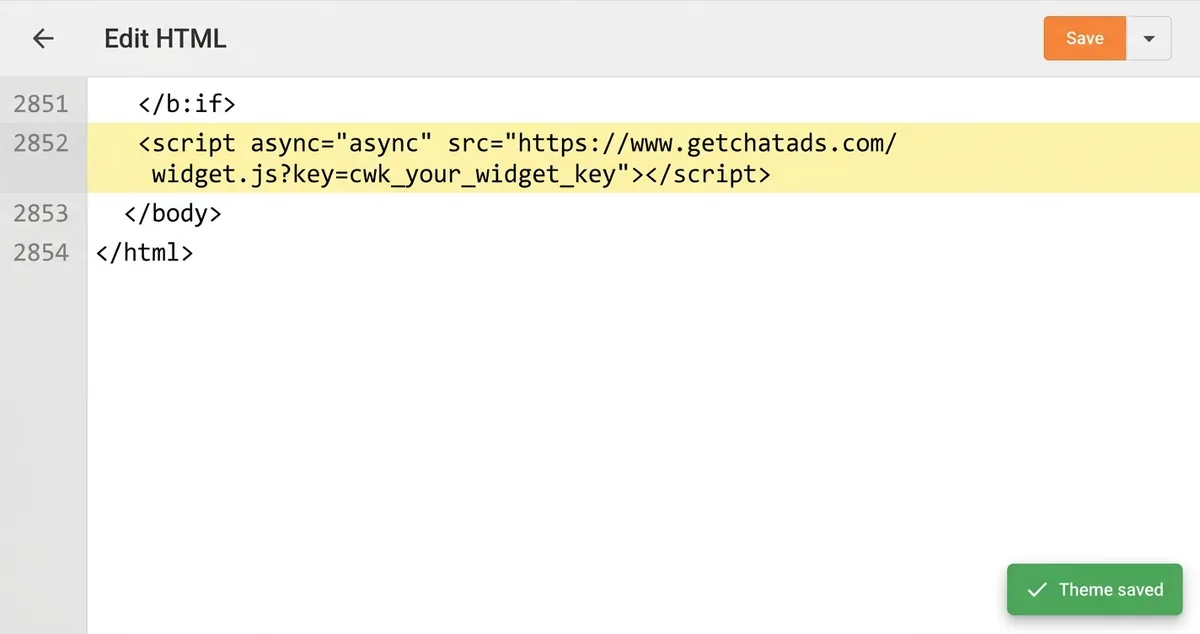
Blogger themes are XML rather than plain HTML, so a tag that works on other platforms can fail to save here. A bare async attribute triggers the error “Attribute name ‘async’ associated with an element type ‘script’ must be followed by the ‘=’ character,” and writing async="async" fixes it. Any & inside a URL also has to become &, although the tag above doesn’t contain one.
To load the chatbot on posts but not your homepage or static pages, wrap the tag in a b:if condition that checks data:view.isPost. That condition only works in the theme itself, and Blogger won’t process it inside an HTML/JavaScript gadget.
<!-- Fails to save in Edit HTML: bare async attribute -->
<script async src="https://www.getchatads.com/widget.js?key=cwk_your_widget_key"></script>

<!-- XML-safe version, paste just above </body> -->
<script async="async" src="https://www.getchatads.com/widget.js?key=cwk_your_widget_key"></script>

<!-- Posts only -->
<b:if cond='data:view.isPost'>
  <script async="async" src="https://www.getchatads.com/widget.js?key=cwk_your_widget_key"></script>
</b:if>
Step 5 - Test the Chatbot on Desktop and Mobile
Test in a private browser window first, since a cached copy of your blog can hide a fresh install or an old mistake. Open a real post, not the homepage, and ask the bot about a detail that only that post covers.
Then check on an actual phone, because Blogger’s mobile view is where a working desktop install can still go missing. On older templates the mobile version adds ?m=1 to the address, and gadgets outside the footer may not render there at all.
Judge the replies by whether the first one answers the question, not by how chatty the bot sounds. Nielsen Norman Group’s researchers found that users who arrive with a question “aren’t looking for a conversation” and are instead “looking for an answer” (source). If the bot hedges or asks follow-up questions before it helps, adjust its instructions or try a different widget. Direct, accurate answers are also what decides whether readers trust an AI assistant on your blog at all.
A quick way to test answer quality is to reuse three or four real questions from your comment section. Compare each reply with what the post actually says, and if an answer drifts, try moving the key facts higher in the post and test again.
| Symptom | Likely cause | Fix |
|---|---|---|
| No bubble anywhere | The blog address in the widget settings doesn't match | Add the exact blogspot address and any custom domain |
| Bubble on desktop, missing on phones | Gadget sits in a section the mobile template hides | Move the gadget to the footer or use Edit HTML |
| Theme won't save | XML error from a bare async attribute or a raw & | Use async="async" and & |
| Generic, off-topic answers | Tested on the homepage or a thin page | Test on a full post with real content |
| Old version still showing | Browser cache | Retest in a private window |
Step 6 - Turn On Affiliate Links and Disclose Them Properly
Monetize only after the chatbot answers accurately, because a link in a wrong answer costs more trust than it earns. Most chat widgets on Blogger are a monthly cost, but some can offset it through affiliate links inside their answers.
Affiliate links are included on every plan, including free. Commissions go to your own tags, so ChatAds takes 0% of what you earn.
ChatAds has two separate monetization switches, and you can turn on either one or both. The first reuses the affiliate links already in your post, so it needs no Amazon account. The second matches products on Amazon with your own Associates tag, for shoppers in the US.
Keep expectations realistic, because a single chat link earns cents to a few dollars. Amazon pays 4.5% on Kitchen, 3% on Home and Toys, and 1% on Grocery, so a $60 Dutch oven sold from a baking post earns about $2.70 at that rate. Those rates can also change, as the 2026 Amazon Associates commission cuts showed.
Disclosure matters even more in a chat, where the link appears in a reply instead of a post. The FTC’s guidance for affiliates says “The closer the disclosure is to your recommendation, the better” (source), which a disclosure page linked from your footer can’t match. When either switch is on, ChatAds adds a “Links may include affiliate offers” line at the bottom of the chat panel, much closer to the link than a footer page.
Here’s how a product link reads inside a reply on a baking blog, with the disclosure line sitting at the bottom of the same panel.
For most blogs, the footer HTML/JavaScript gadget is the right way to add a chatbot to Blogspot. Edit HTML is worth the extra care only if you want the bot on posts alone or your theme has no footer section.
Still, the widget type matters more than where you paste it, since a site-trained bot, a page-aware widget, and live chat each fit a different kind of blog. Pick the one that matches how your readers ask questions, test it on a real phone, and disclose any links inside the chat itself. A free page-aware widget like ChatAds is a low-risk place to start, and the affiliate switches can wait until you trust what it says.
Frequently Asked Questions
How do I add an AI chatbot to Blogger?
Copy your chatbot's script tag, then go to Layout, click Add a Gadget in the footer section, choose HTML/JavaScript, paste the tag, and save. If you want it on posts only, paste it just above the closing body tag in Theme, Edit HTML instead.
Is there a free AI chatbot for Blogger?
Yes, several chat widgets have free plans, but some are trials that expire or cap usage without saying so. ChatAds has an ongoing free plan with 100 reader messages a day, no credit card, and affiliate links included.
Why won't Blogger save my theme after I add a chatbot script?
Blogger themes are XML, so a bare async attribute causes a save error. Change async to async="async" and replace any & in the script URL with &, then save again.
Can I show a chatbot only on Blogger posts?
Yes, but only through Theme, Edit HTML. Wrap the script tag in a b:if condition that checks data:view.isPost, because Blogger won't process that condition inside an HTML/JavaScript gadget.
Why is my chatbot not showing on my Blogspot blog on mobile?
Older Blogger mobile templates can hide sidebar gadgets on phones. Move the HTML/JavaScript gadget to the footer or paste the script into the theme, and confirm the exact blog address is registered with the widget.
Can I make money from a chatbot on my Blogspot blog?
Yes, if the chatbot supports affiliate links inside its answers. ChatAds can reuse the affiliate links already in your post or add Amazon links with your own Associates tag, and it shows a disclosure line in the chat panel.